Legal Billing Software Features
Tabs3 Billing Software is the industry standard for legal time and billing software and the best way to make sure you and your staff bill clients on time.
Easy to Use
The Tabs3 Billing Matter Manager gives you a quick look into all of a client’s most important statistics and quick access to the features you use most. A client’s contact information, recent payments, write offs, work-in-process, accounts receivable balance, and fund account balance are neatly presented on screen. Tabs3 Billing Matter Manager also gives you customizable one-click access to the ten tasks you do most often. 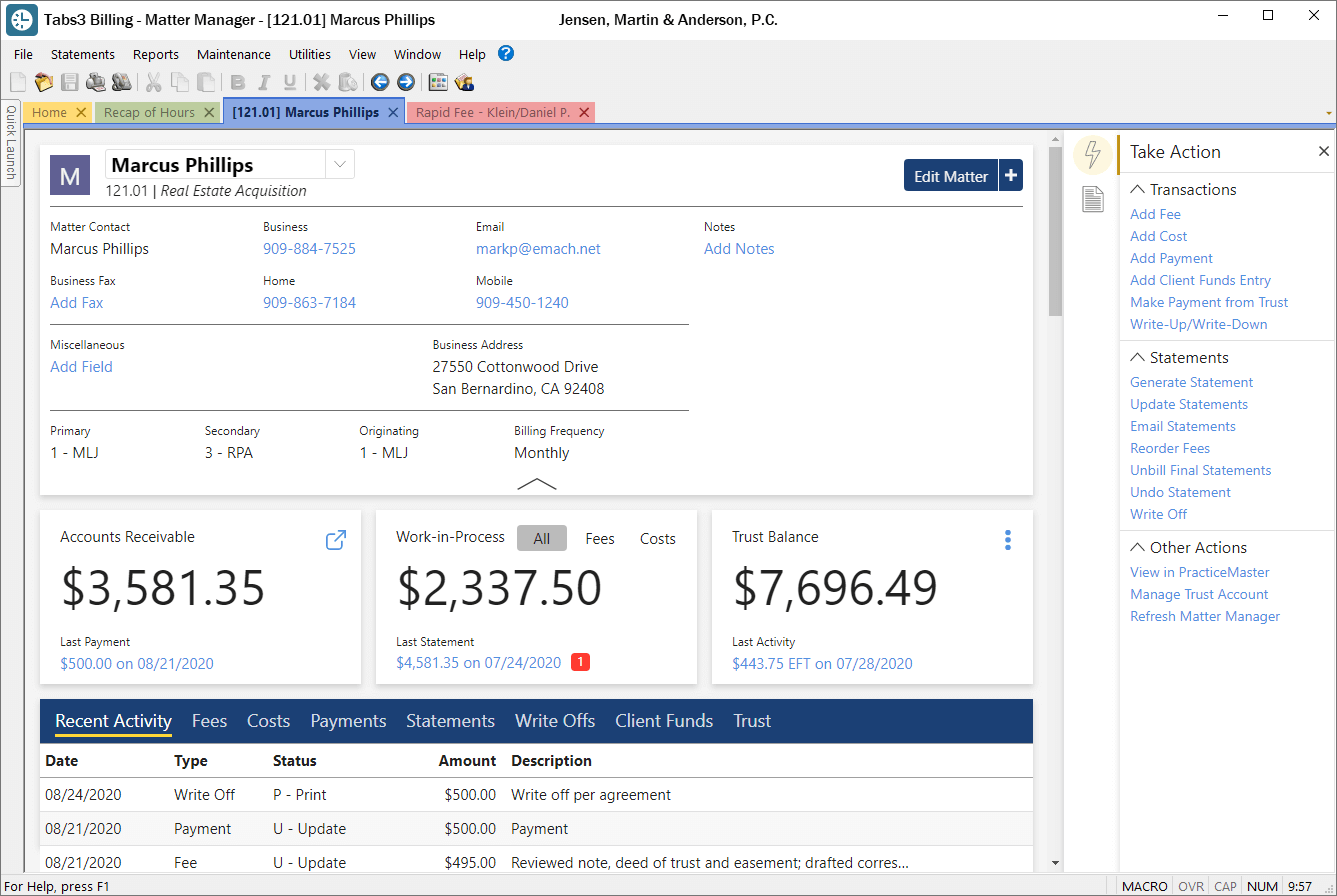
Track Your Time Easily
Easy-to-use time entry forms help you and your staff enter time quickly. Use stopwatch timers to track time while you work, then turn time records into fees with one click. Use a client’s default billing settings or change them for non-typical fees. Track both Hours Worked and Hours to Bill for the most accurate reporting. Show a fee entry list to see what you have already entered.
Stay Informed at a Glance
With Tabs3 Billing’s new dashboards, you can use graphs to quickly assess billing historical data. You can also configure user profiles to limit access to this firm-wide information. The Accounts Receivable and Work-in-Process widgets shows the A/R and WIP totals for each aging period. The Cash Receipts widget shows a graph of payments received and the Billing History widget shows a graph of amounts billed.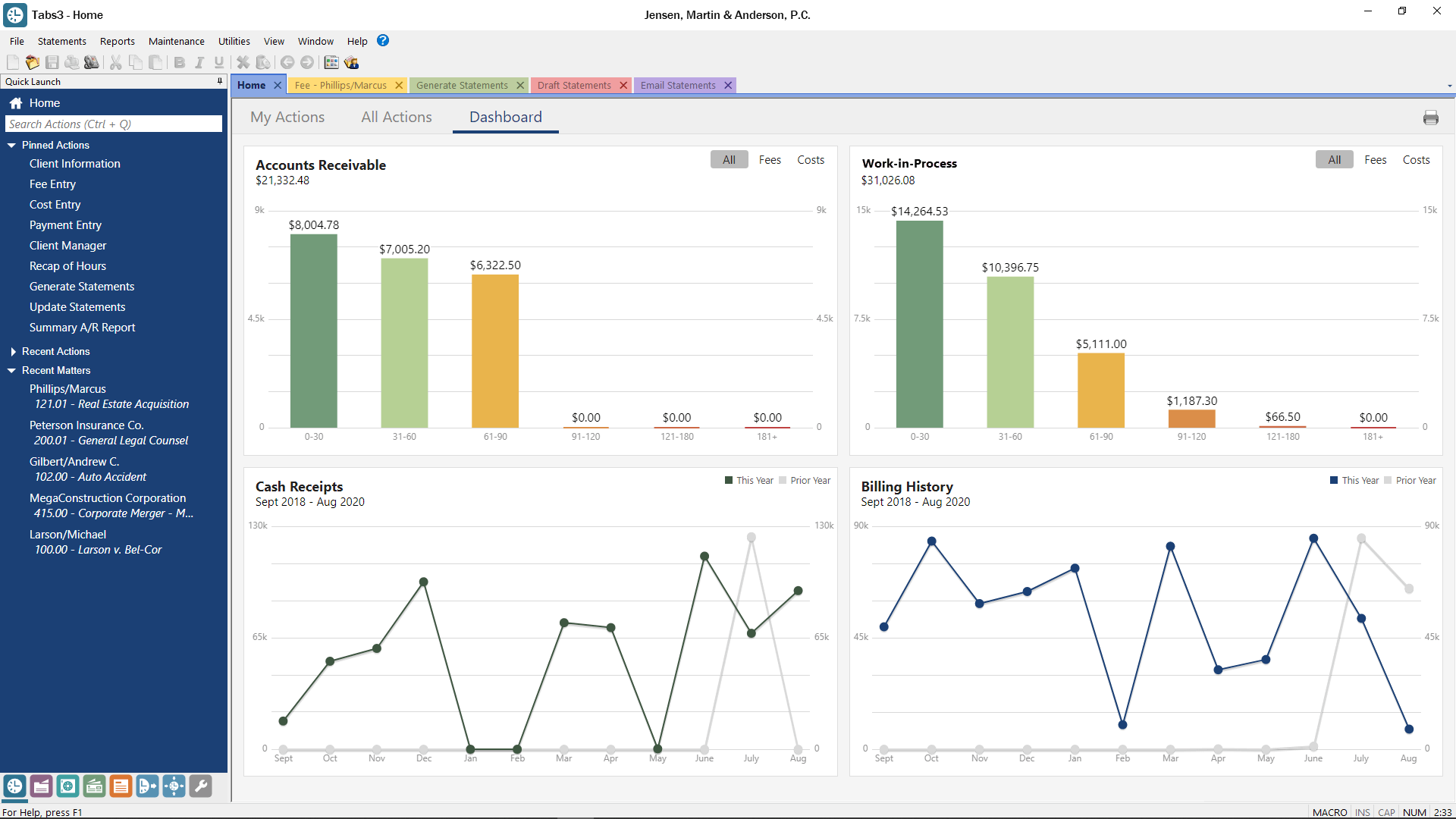
Bill Exactly the Way You Want To
When you use Tabs3 in your law office, you have nearly unlimited billing rate flexibility. Every lawyer or paralegal whose time is billed to clients can set up default billing rates for new clients. You can also use a standard rate for timekeepers’ levels (partner, associate, etc.) or create customized rate tables for any client matter. For matters with multiple payees, split billing allows you to bill multiple people a percentage of fees and/or costs for one matter. Besides flexible hourly billing, other billing options include contingency, flat fee, retainer, electronic task-based (Taskbill required), threshold, and progress billing. When clients pay for multiple statements or matters with one check, you can easily allocate the payment across all of the statements and timekeepers with one payment entry. Add your law firm’s logo, customize terminology, and use client-specific notes to make sure statements look the way you want them to. Print bills for all clients at one time, or select groups of clients based on primary attorney, matter type, client status (Progress Billing, Task Based, Bill on Demand, etc.), and more.
Tools to Get Your Bills Out Faster
Send bills to clients in seconds by using the Tabs3 Email Statements feature. Set up an email template that automatically adds client information to the body of your emails. Tabs3 will automatically attach a PDF statement to each client’s email so you can send batches of statements in just a few minutes. You can easily resend an individual statement as well using the Statement Manager. Review unbilled time and expenses by attorney or matter using transaction reports and/or draft statements. From the preview mode, click on individual transactions to drill down and edit them. Use Pre-Bill Tracking to track the status of individual bills and the work you have in process. See which statements have been reviewed and are ready to be sent, and which statements are on hold. Create electronic task-based bills in LEDES, LitigationAdvisor, and over 100 other formats and subformats. Tabs3 Taskbill Software is required and sold separately.
Tools to Get Paid Faster
By using Tabs3 to accept credit cards, you enter the payment in only one place. By accepting credit cards, you get paid faster while shifting collection risk to credit card companies. There’s even a chance someone will make a payment on their way out of your office! Use Tabs3Pay within Tabs3 Billing to include a payment link with your emailed statements, allowing clients to pay their bill online. You can also accept payments through LawPay or ProPay.
Secure Your Information
Restrict the ability of any user to view, enter, edit, or delete information from any client or matter. Access profiles make sure that sensitive information remains secure, and strengthen the ethical walls in your firm.
Reports to Stay on Top of Your Billing
Top Client Report
Quickly see your most important clients. Rank your clients by work-in-process, billed amounts, write offs, paid amounts and more, for any time period, with the Top Client Report. 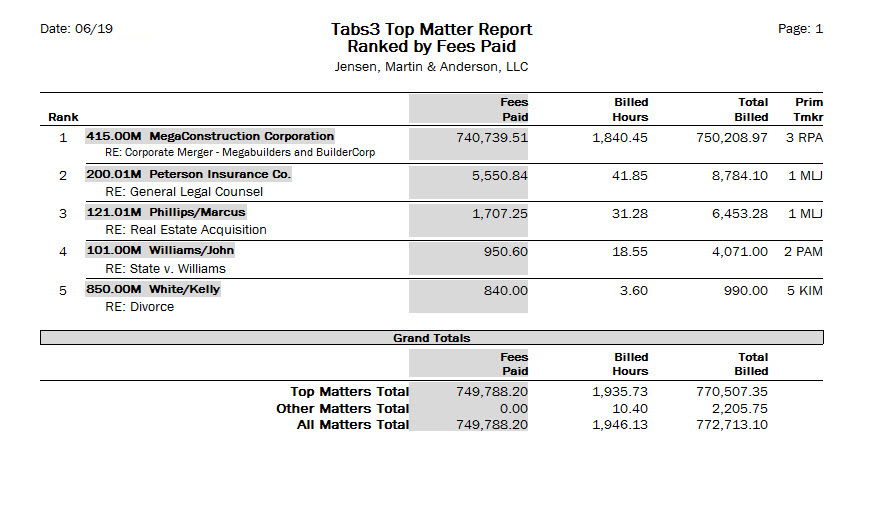
Collections Report
Find your highest-priority accounts receivable clients with the Collections Report. Review amounts billed, payment histories, outstanding invoices, and client contact information for easy follow-up. 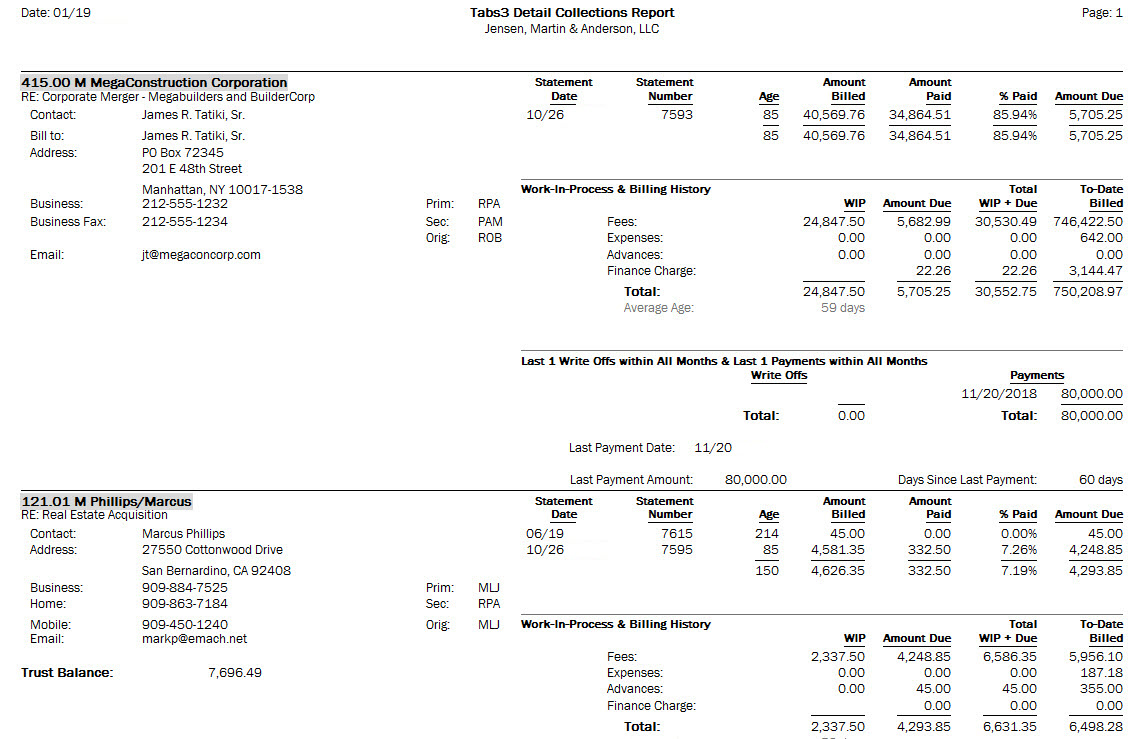
Work-in-Process Reports
Unbilled transactions are a click away with Work-in-Process Reports. Sort unbilled transactions by client, timekeeper, date, and more to make it easy to find the information you need. 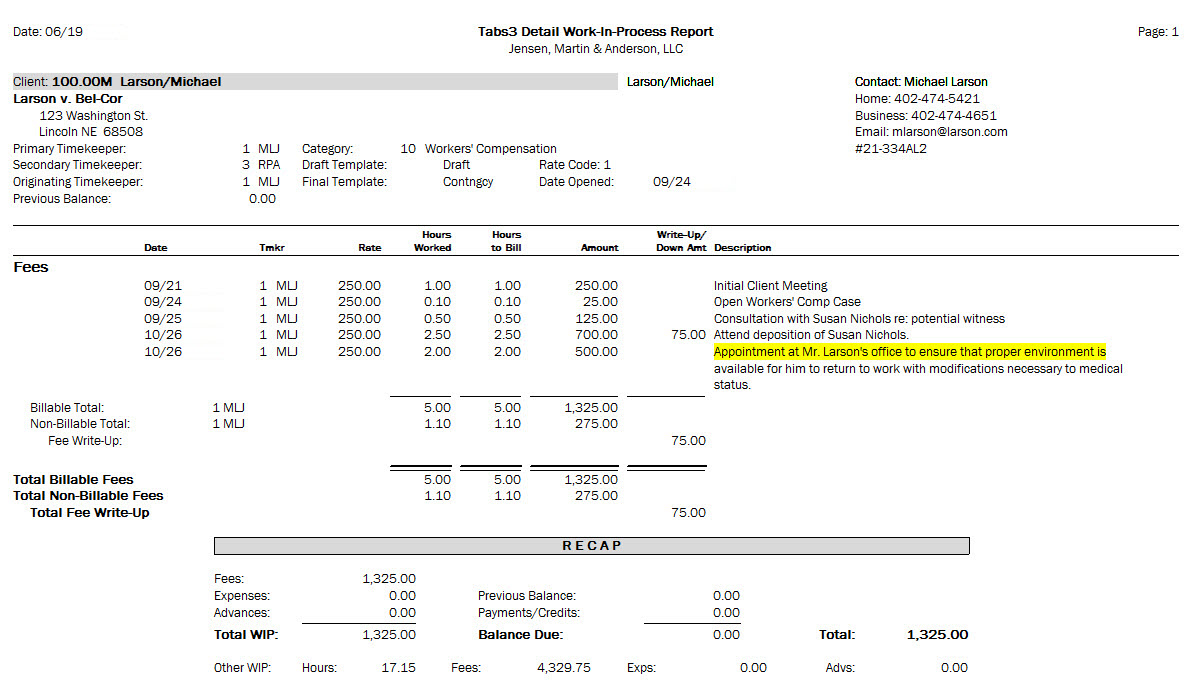
Recap of Hours Report
Summarize your daily, weekly, and monthly worked hours with the Recap of Hours Report. This report is particularly useful for identifying hours of work that have not yet been entered.
Client Ledger Report
A Client Ledger Report displays a complete history and status of all billing statements. See what has already been paid and what is currently due. 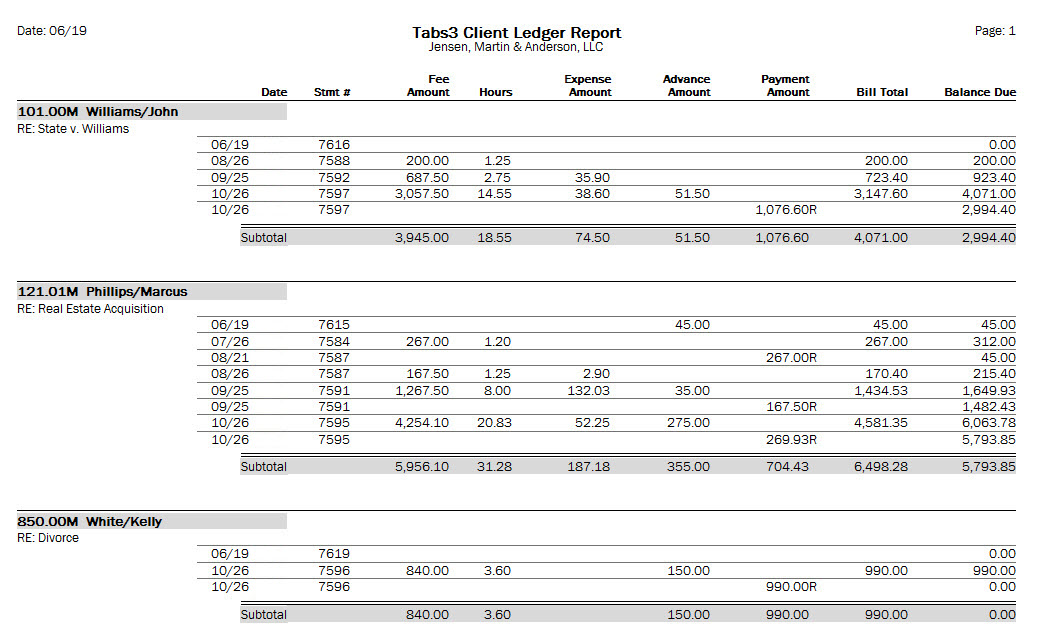
Accounts Receivable Reports
Review amounts billed to each client and amounts currently due. See a summary or detailed report of amounts due by attorney or by invoice. 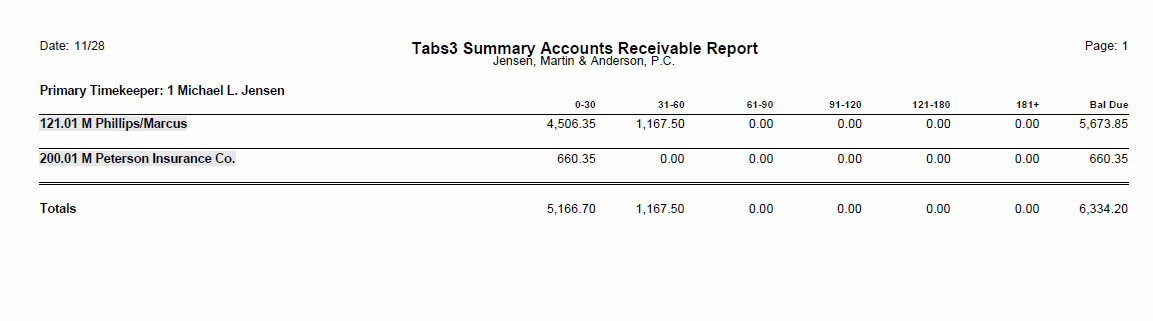
Advanced Compensation Rules
Set up compensation rules for originating, primary and secondary timekeepers. Here are some examples of how compensation rules can be used:
- Kathy gets 2% of receipts from all working timekeepers.
- Bruce gets 5% of receipts from work done by Kari, Deb and Phil.
- Dan gets 5% of receipts for ACME Insurance until June 2015.
- Brad gets 10% of receipts for Widgets International until he receives a total of $10,000.
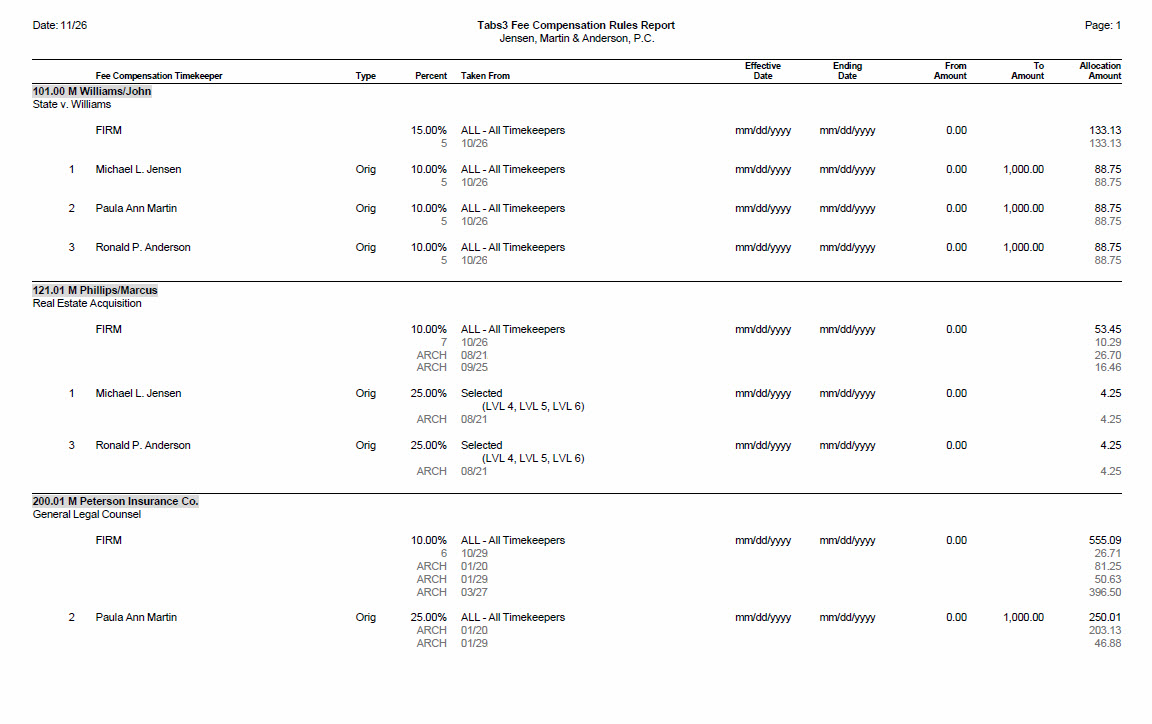
Compensation Reports and Tools
Allocated Payments Report
Use the Allocated Payments Report to see how payments were distributed to fees, expenses, advances, sales tax, and finance charge by allocation date. 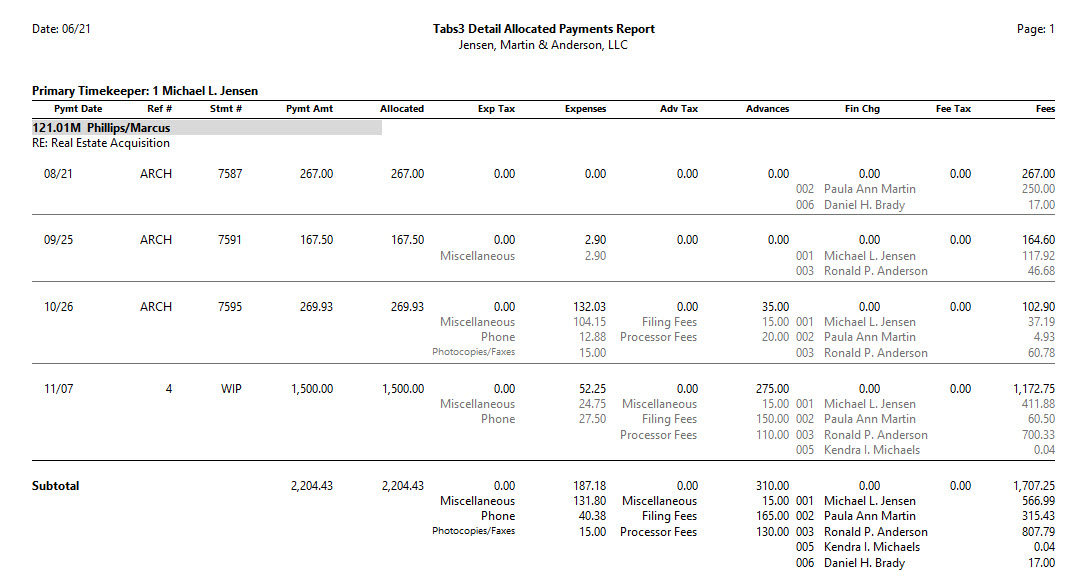
Cash Receipts Report
See all of your payments for any date range broken down by fees, finance charge, expenses, and advances.
Unallocated Payments Report
Review all payments that haven’t yet been allocated to a particular invoice. 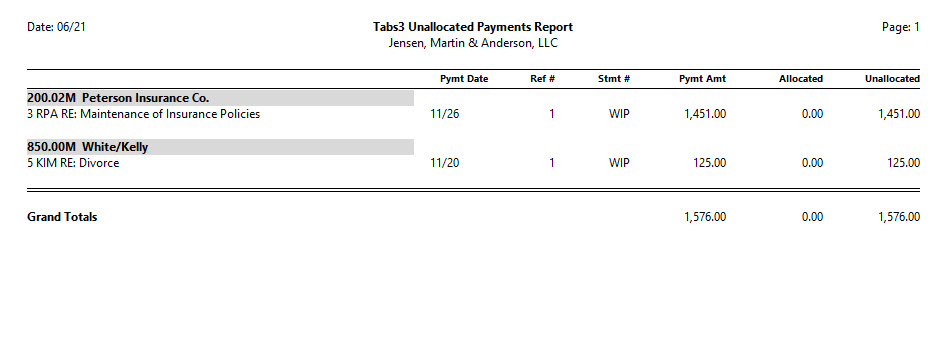
Reports to Gain Insight into Your Firm’s Business
Client Productivity Report
To determine which clients or matter types are most profitable for your firm, run the Client Productivity Report. You will see how much your firm profits from a single matter or area of practice and how that compares with prior years. 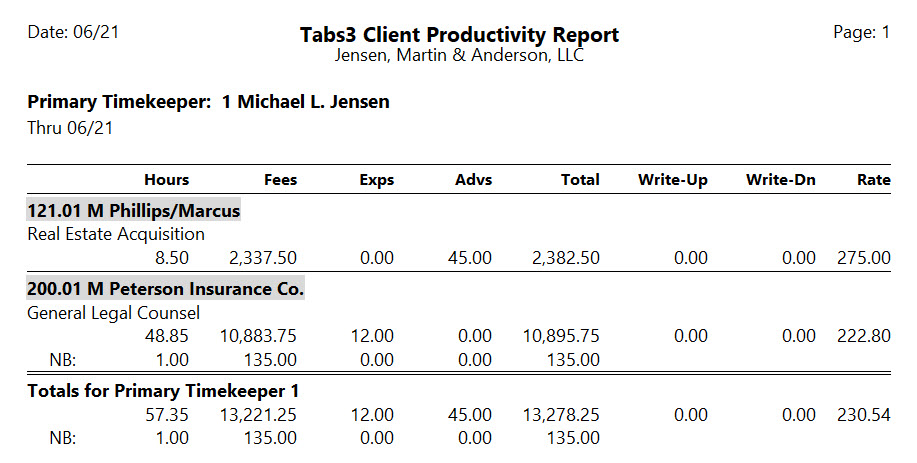
Timekeeper Profitability Report
Review billed amounts and overhead for each timekeeper. 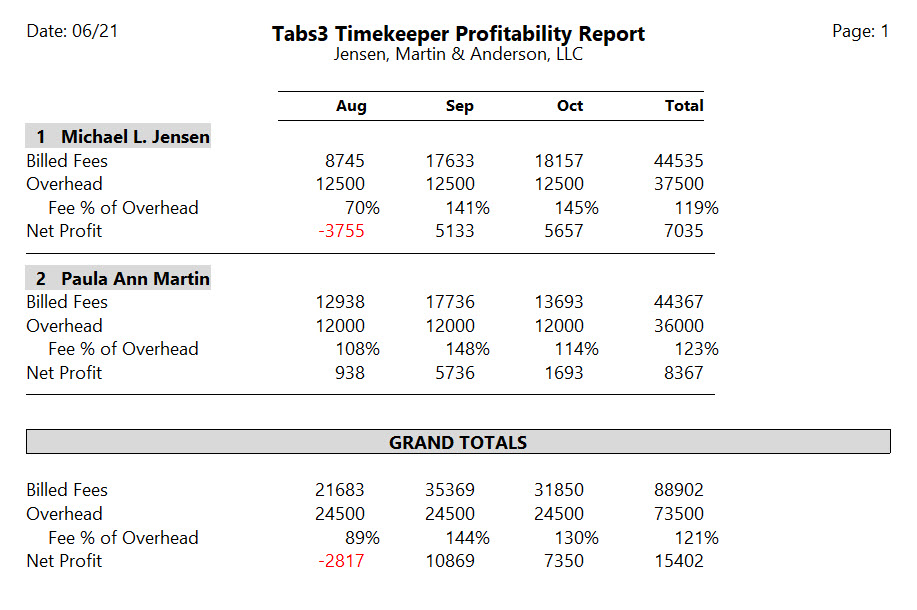
Receipt Allocation Report
Track how payment amounts were distributed with the Receipt Allocation Report. Quickly review payments to see what each attorney received, and how much of the payments were for advances, expenses, sales tax, and finance charges. 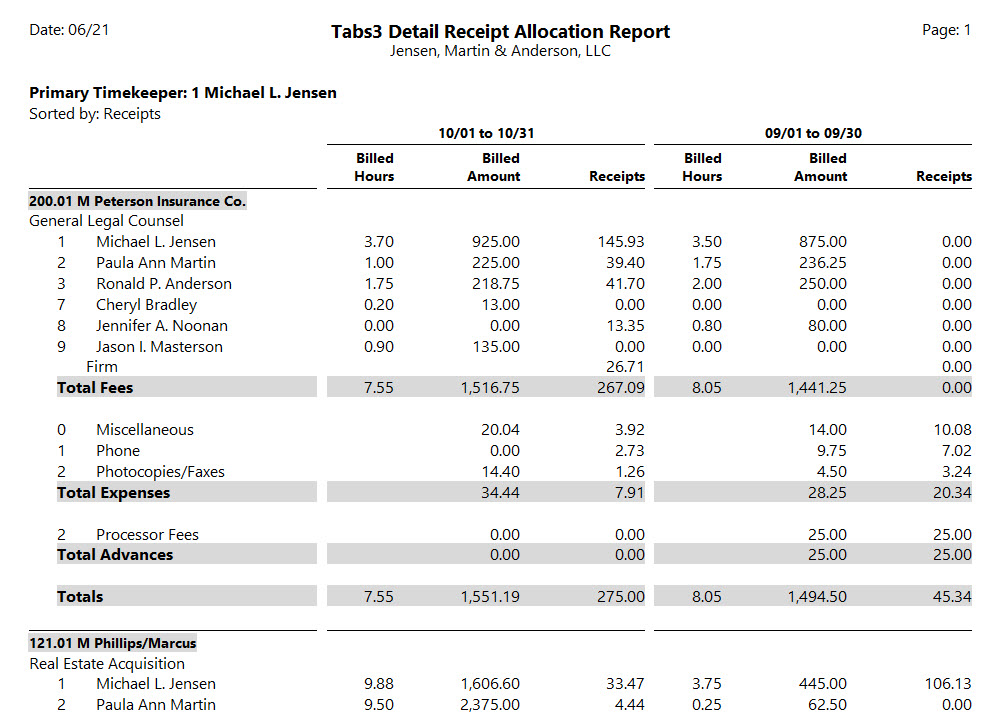
Category Productivity Report
Billings, rates, write-ups, and write-downs are organized by area of practice in the Category Productivity Report. 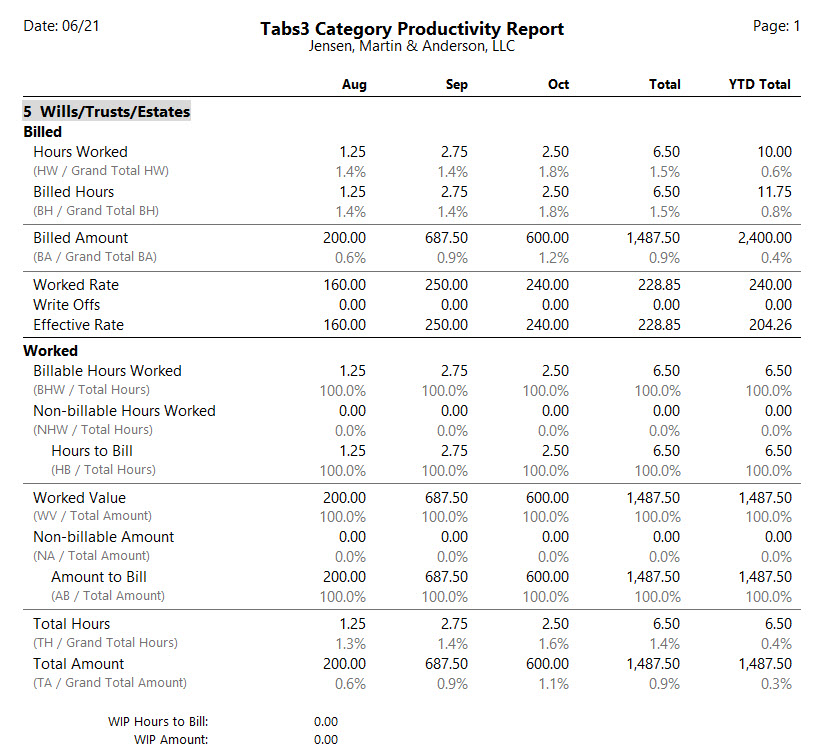
Reports for Electronic Billing
Task Code Billing Report
A list of all billed and unbilled task-based billing transactions are available in the Task Code Billing Report.
Task Code Budget Report
Billed and unbilled amounts for expenses and activities are broken down by common tasks such as phone calls, meetings, research, etc. in the Task Code Budget Report.
Reports to Gain Insight into Timekeeper Productivity
Timekeeper Productivity Report
The Timekeeper Productivity Report summarizes billed hours and amounts by specific timekeepers. It shows you effective billing rates, write-ups and write-downs, as well as total billable and non-billable hours and amounts for each timekeeper. 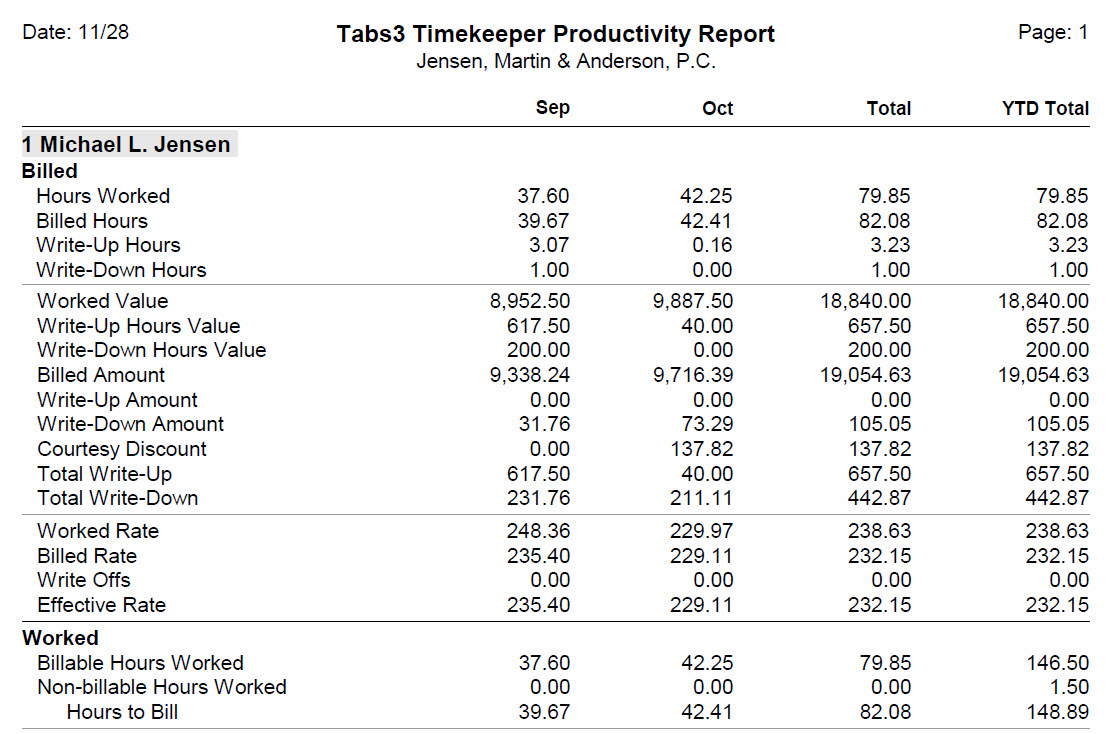
Category Report by Timekeeper
See which staff members handle certain case types most efficiently by running the Category Report by Timekeeper. This report shows the hours and amounts for fees billed year-to-date by area of practice for each timekeeper. 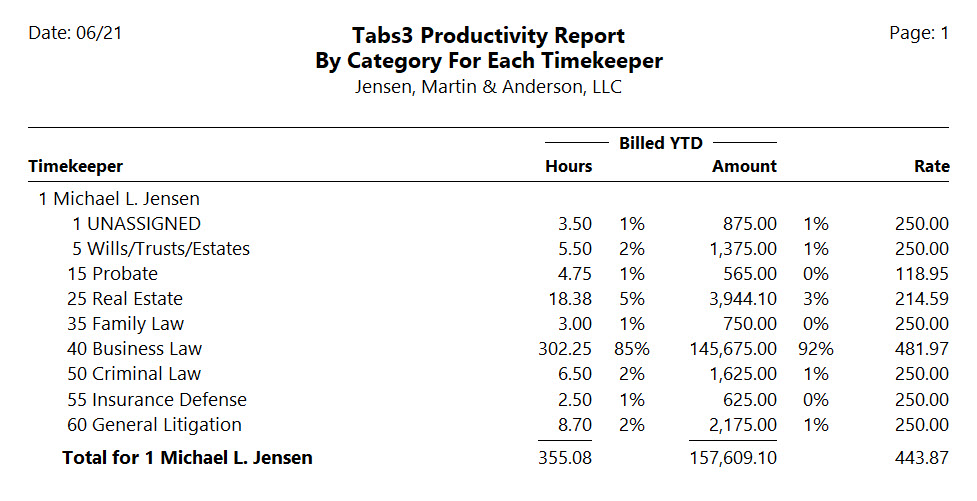
Timekeeper Status Report
Get a quick overview of all work-in-process and accounts receivable for each timekeeper whether they are the primary, secondary, or originating timekeeper. 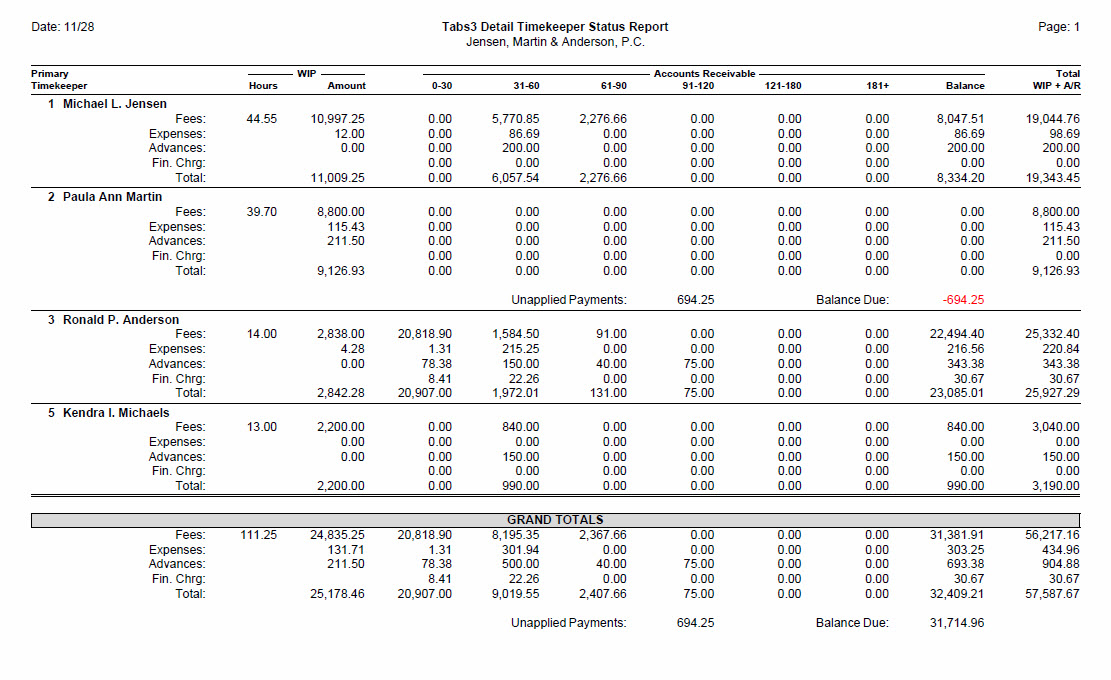
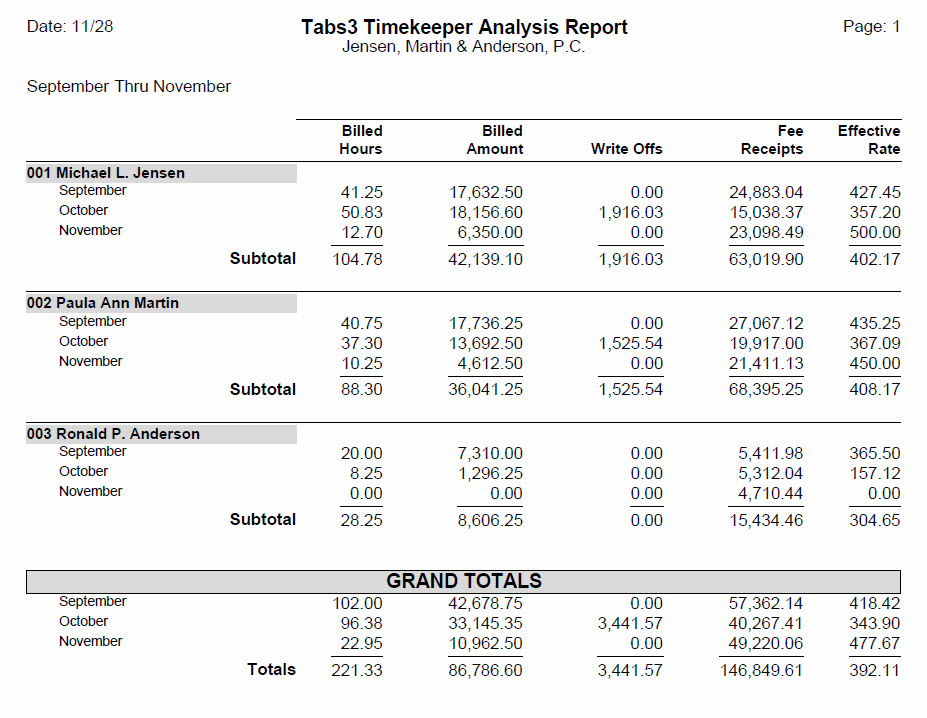
Timekeeper Analysis Report
See what has been billed and paid by each timekeeper. You can see billed hours, original hours, billed amounts, and gross receipts.